
Configure the MCP server
Connect Claude, Claude Code, Cursor, Opencode, and other MCP-compatible clients to create interviews, manage invitations, and pull transcripts.
Raconte exposes a Model Context Protocol server over Streamable HTTP. Any MCP-compatible client can drive the product with eight tools: four for interviews (list-interviews, create-interview, update-interview, get-interview) and four for invitations (list-invitations, create-invitation, update-invitation, get-invitation).
This guide shows how to wire it up in the most common clients. For what each tool does and example workflows, see the usage guide and the MCP server reference.
Before you start
You need:
- A Raconte account on an organization where you can create API keys.
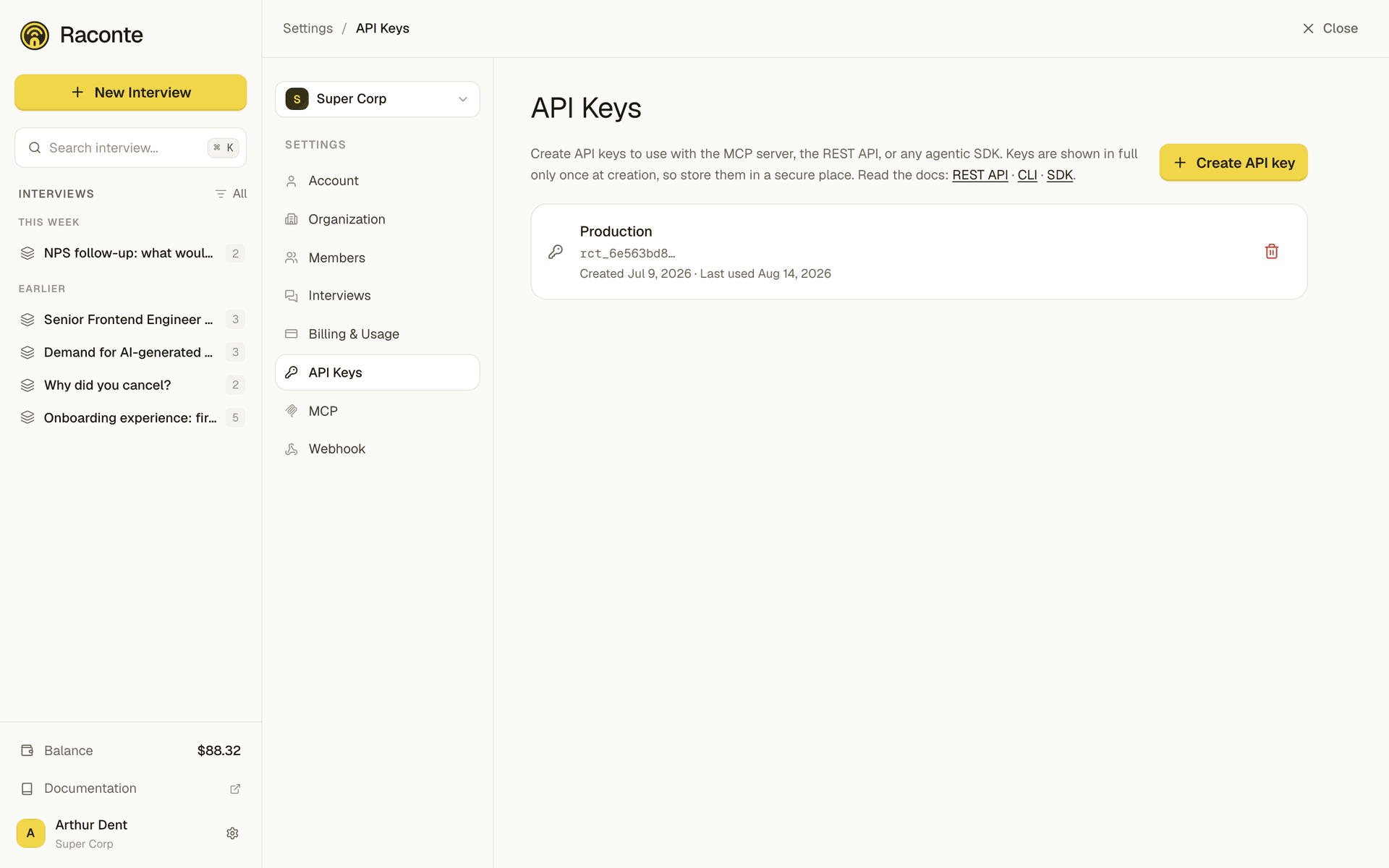
- An API key. Go to Settings → API keys, create one, and copy it once (the full value is shown only at creation).
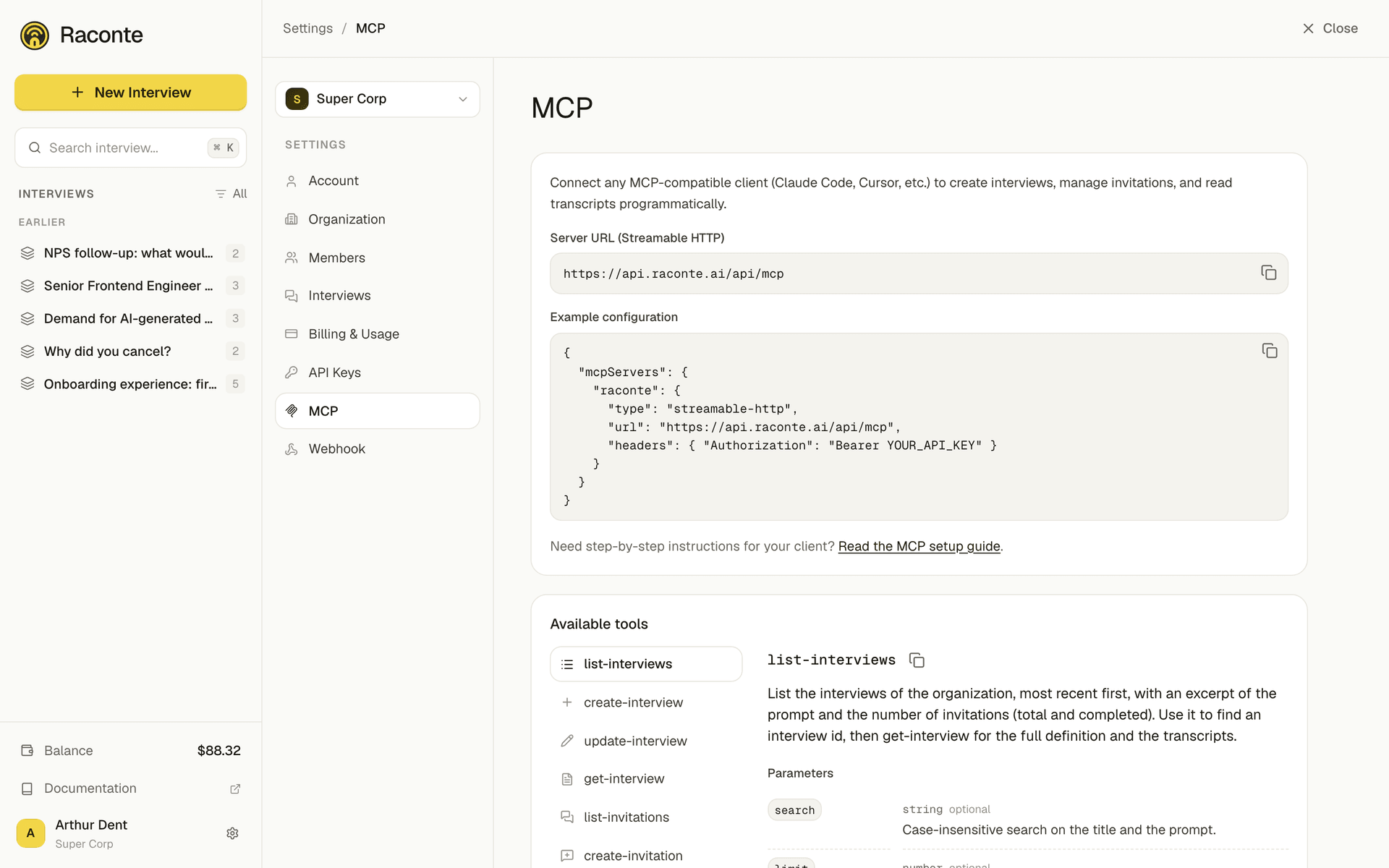
- The MCP endpoint URL. Production:
https://api.raconte.ai/api/mcp. Replace with your own host if you self-host.
Create the key from Settings → API keys:
Then grab the endpoint and a ready-to-paste config from Settings → MCP:
The client connects to the endpoint with your API key as a bearer header:
Authorization: Bearer YOUR_API_KEYEvery client below accepts a headers block, except Claude Desktop, whose custom connectors take a URL and nothing else. For that one, and any other client with the same limitation, the key goes in a query parameter instead:
https://api.raconte.ai/api/mcp?api_key=YOUR_API_KEYAnyone who can read your MCP config can send interviews and read transcripts on your behalf. Keep the key in a .env file and reference it from the config (the examples below do this), and keep config files out of any folder you publish or sync. In the query-parameter form the key also travels in the URL, so it lands in shell history and server logs: prefer the header wherever you have the choice.
Put the key in a .env
Most clients can expand a variable from your shell into the MCP config at startup, so the key can live in a .env file and never appear in the config itself.
- Put
RACONTE_API_KEY=...in a.envfile (or in your shell profile, or in a project.envrcloaded by direnv). - Make sure the shell that launches the client exports it. With direnv that happens automatically; with a plain
.env, source it (set -a; source .env; set +a) or wrap the command with adotenvlauncher. - Reference the variable from the config using the syntax your client expects (each section below uses it).
Add .env to .gitignore. Only the variable name ends up in the config.
Claude Desktop
Claude Desktop reads its config from ~/Library/Application Support/Claude/claude_desktop_config.json on macOS or %APPDATA%\Claude\claude_desktop_config.json on Windows.
Add an entry under mcpServers:
{ "mcpServers": { "raconte": { "type": "streamable-http", "url": "https://api.raconte.ai/api/mcp?api_key=YOUR_API_KEY" } }}Restart Claude Desktop. The raconte tools appear in the tools picker.
So the key stays inline in the URL, spelled out. Either bridge through stdio with mcp-remote, which supports both env and a --header flag, or leave it inline and keep the file out of any synced folder.
Claude Code (CLI)
The fastest path is the claude mcp add command. From any directory:
claude mcp add --transport http raconte "https://api.raconte.ai/api/mcp" \ --header "Authorization: Bearer \${RACONTE_API_KEY}"Use --scope user to make the server available across every project, or --scope project to commit a .mcp.json file at the repo root for the team.
You can also edit ~/.claude.json (user scope) or .mcp.json (project scope) directly. Claude Code expands ${VAR} from the parent shell, in the URL and in the headers alike:
{ "mcpServers": { "raconte": { "type": "http", "url": "https://api.raconte.ai/api/mcp", "headers": { "Authorization": "Bearer ${RACONTE_API_KEY}" } } }}The variable has to be exported in the shell that launches Claude Code. A .env sitting in the repository is not read by the client, and an unexpanded ${RACONTE_API_KEY} reaches the server as an invalid key.
Then claude mcp list confirms the server is connected.
Cursor
Cursor reads MCP from ~/.cursor/mcp.json (global) or .cursor/mcp.json at the project root. It expands ${env:VAR} in url and headers alike:
{ "mcpServers": { "raconte": { "type": "streamable-http", "url": "https://api.raconte.ai/api/mcp", "headers": { "Authorization": "Bearer ${env:RACONTE_API_KEY}" } } }}Open Settings → MCP & Integrations to verify Cursor sees the server, then enable the tools you want the agent to call.
Opencode
Opencode reads ~/.config/opencode/config.json (or opencode.json at the project root). It uses {env:VAR} for interpolation:
{ "$schema": "https://opencode.ai/config.json", "mcp": { "raconte": { "type": "remote", "url": "https://api.raconte.ai/api/mcp", "headers": { "Authorization": "Bearer {env:RACONTE_API_KEY}" }, "enabled": true } }}Restart Opencode. The raconte tools become available to every model that supports tool use.
VS Code (GitHub Copilot Chat)
VS Code 1.99+ supports MCP through .vscode/mcp.json per workspace, or mcp.json in your user profile. The cleanest pattern is a prompted, password-typed input that VS Code caches in its secret storage:
{ "inputs": [ { "id": "raconteApiKey", "type": "promptString", "description": "Raconte API key", "password": true } ], "servers": { "raconte": { "type": "http", "url": "https://api.raconte.ai/api/mcp", "headers": { "Authorization": "Bearer ${input:raconteApiKey}" } } }}${env:RACONTE_API_KEY} works too if you prefer the env-var form. Open the Copilot Chat panel, switch to Agent mode, and the raconte tools show up in the tool picker.
Windsurf
In Windsurf, open Settings → Cascade → MCP servers or edit ~/.codeium/windsurf/mcp_config.json. It supports ${env:VAR} like Cursor:
{ "mcpServers": { "raconte": { "serverUrl": "https://api.raconte.ai/api/mcp", "headers": { "Authorization": "Bearer ${env:RACONTE_API_KEY}" } } }}Save and reload. The tools appear in Cascade.
Available tools
Once the server is connected, your client can call eight tools, all scoped to the organization that owns the API key and all returning JSON:
list-interviews,create-interview,update-interview,get-interviewto browse, create, edit and read interviews.list-invitations,create-invitation,update-invitation,get-invitationto browse invitations, invite participants and read their transcripts.
Both list-* tools return the most recent rows first, take a search string, and page through the results with limit and offset.
See the usage guide for examples and end-to-end workflows, and the MCP server reference for the full parameter list of each tool.
Troubleshooting
Most clients cache the tool list per session. Restart the client, or remove and re-add the server entry.
If a call returns an authentication error, the API key was likely revoked or never had access to the org. Generate a new one in Settings → API keys and update the variable.
If you self-host Raconte, replace https://api.raconte.ai with your own API host. The path stays /api/mcp.